> ## Documentation Index
> Fetch the complete documentation index at: https://help.usesheer.com/llms.txt
> Use this file to discover all available pages before exploring further.
# Connect Your Instagram to Sheer
> Link your Instagram account so Sheer can access your analytics.
To see your Instagram analytics in Sheer, you need to connect your Instagram account and grant insights access.
During onboarding, you'll see the **Connect your socials** screen. Click **Connect with Instagram**. You'll be redirected to Instagram's authorization screen.
Instagram will ask you to approve two permissions:
* **View profile and access media** — required, always on.
* **Access and manage insights** — required, **you must keep this toggled ON**.
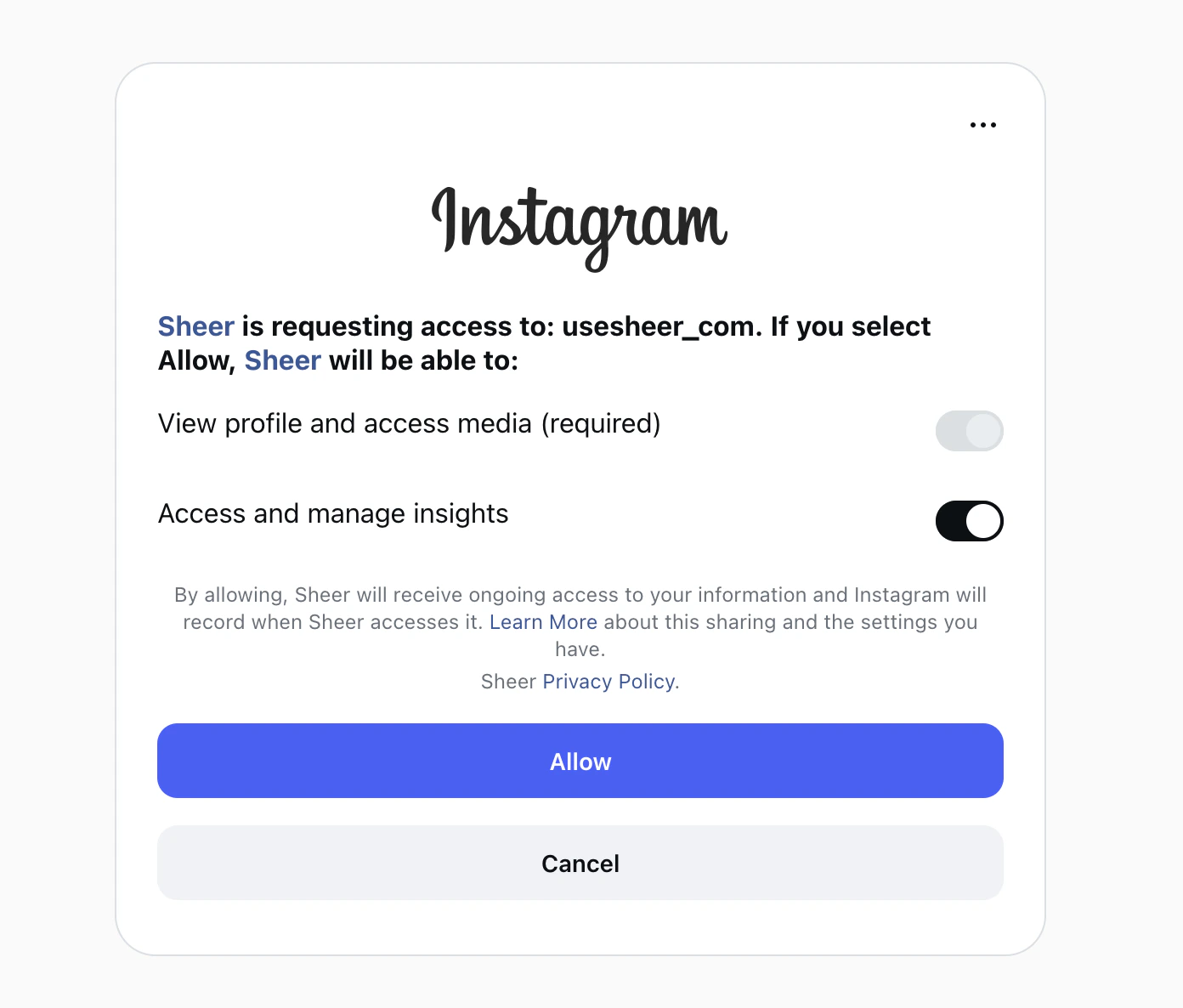 If you turn off **Access and manage insights**, Sheer cannot read any of your analytics data. Make sure both toggles are enabled before continuing.
Click the **Allow** button. Sheer will start pulling in your data.
That's it — your Instagram is connected. Data typically appears within a few minutes.
## Something not working?
If Sheer isn't showing your Instagram data after connecting, you may have accidentally turned off insights access. See [How to Re-enable Instagram Insights Access](/re-enable-instagram-insights) to fix it.
If you turn off **Access and manage insights**, Sheer cannot read any of your analytics data. Make sure both toggles are enabled before continuing.
Click the **Allow** button. Sheer will start pulling in your data.
That's it — your Instagram is connected. Data typically appears within a few minutes.
## Something not working?
If Sheer isn't showing your Instagram data after connecting, you may have accidentally turned off insights access. See [How to Re-enable Instagram Insights Access](/re-enable-instagram-insights) to fix it.