> ## Documentation Index
> Fetch the complete documentation index at: https://help.usesheer.com/llms.txt
> Use this file to discover all available pages before exploring further.
# Onboarding guide
> Welcome to Sheer! This Creator Help Center will help you set up your Sheer account and connect your Instagram and TikTok.
## Before you start
We do not support smartphones for this process and recommend using a computer.
For Instagram specifically, make sure to check that your Instagram is setup correctly. You'll need to have:
If you are in doubt, check out the guide [Switch to an IG business account](/essentials/ig-business)
## Create your Sheer user
Follow these simple steps to create your Sheer account and get started:
Open your laptop and go to [https://app.sheer.dk/auth/join](https://app.sheer.dk/auth/join) and click on **Get Started Today** in the top right corner.
Enter your email address and create a password to set up your Sheer account. Make sure you use a valid email address, as you will need it for verification.
Check your inbox for a verification email from Sheer. Open the email and click the verification link to confirm your account.
Tip: If you can't find the email, please check your spam inbox
Great, you are almost done! You just need to connect your Instagram and TikTok.
Don't forget to confirm your Sheer account in Step 3 first.
## Connect your Instagram and TikTok to Sheer
To fully activate your Sheer profile, you'll need to connect your Instagram and TikTok account.
Follow the steps below:
Log in to your creator account on Sheer using your email and password.
Select either **Connect with Instagram** or **Connect with TikTok**. Follow the page and log in with your credentials. We recommend setting up both platforms at once.
When asked if you would like to allow Sheer access to your account, select **Allow.**
If it is the incorrect account showing up then:
* For Instagram: When directed to Instagram's page for confirming the access to Sheer, select the 3 dots on the top-right side of the menu → then select "change account" → log in with the correct account.
* For TikTok: Select the "Switch account" button and select the correct account.
Finish completing your profile with your name and select a profile picture.
Your account is now connected to Sheer. But wait, there is more!
Many brands use Sheer to find creators for their collaborations. Make your profile stand out!
In the left-hand side of the Creators tab, hover over your name and click the three dots → then click on "Influencer settings". This is the final step for finishing your profile. Here you can:
1. Edit your profile name, picture and update your biography.
2. Update your contact information, so that brands using Sheer can contact you regarding collaborations.
3. Select the categories that best describe your profile and content for brands using Sheer to see.
4. Provide initial pricing for collaborations.
You've successfully connected your account to Sheer.
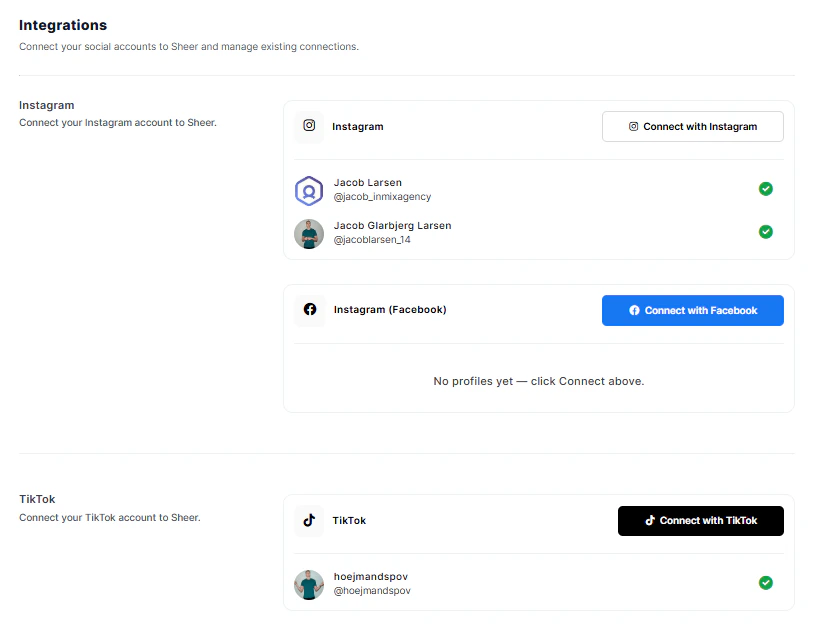
You can confirm your connection is set up correctly if you go to "**Integrations**" on the menu bar, you will see a green check mark next to your profile, indicating that everything is set up correctly:
You are able to connect both your Instagram and your TikTok account to your Sheer at the same time 👏!
## Free creator resources with Sheer
Sheer offer free tools to help you grow and close more deals as a creator when connected to Sheer. These include:
1. Live-updating Mediakits.
2. Live-updating reports.
Both of these resources allows you to create in-browser professional Mediakits and reports to share with current collaborative partners, have available in your portfolio, or present to brands during initial talks.
**Get started now with these resources to stand out from the competition!**
Here are a few helpful links to get you started right away. Simply click on one of the cards below to begin.
With Sheer, you can create your own professional mediakit as a creator for free and instantly share it with brands interested in doing brand collaborations.
Create your own professional report as a creator for free and instantly share it with brands you are currently collaborating with.
## Video guide for connecting your account to Sheer:
 You are able to connect both your Instagram and your TikTok account to your Sheer at the same time 👏!