

Before you start
- Use a laptop or desktop computer.
- Know which Google account owns your channel. If your channel is a Brand Account, Google will ask you to pick the channel after you sign in.
- The Google account must have a channel. Sheer can’t connect a Google account without one.
Connect
1
Click Connect with YouTube
During onboarding, click Connect next to YouTube on the Connect your social accounts screen. Later, use Connect with YouTube on your Integrations page under YouTube.You’re sent to Google.
2
Choose the account that owns your channel
Sign in to Google and pick the account. If you have a Brand Account, Google then asks which channel to use. Pick the channel you want on Sheer.
3
Tick both permissions
Google shows what Sheer is asking for:
- View your YouTube account. Your channel details and videos.
- View YouTube Analytics reports for your YouTube content. Views, watch time and audience stats.
How to know it worked
On your Integrations page, your channel appears under YouTube with a Connected badge and your subscriber count. Your videos and audience stats show up within a few minutes.What Sheer reads from YouTube
- Channel: name, handle, description, profile and banner image, subscriber, video and view counts.
- Videos: your uploads with their views, likes, comments and watch-time stats. Recent videos update daily.
- Audience: viewer age, gender and country for the last 12 months.
Disconnecting
On your Integrations page, click the three dots next to your channel and choose Disconnect, then confirm. Sheer stops reading your channel immediately and removes your creator profile for that channel. Your synced YouTube data is deleted after 30 days unless you reconnect before then.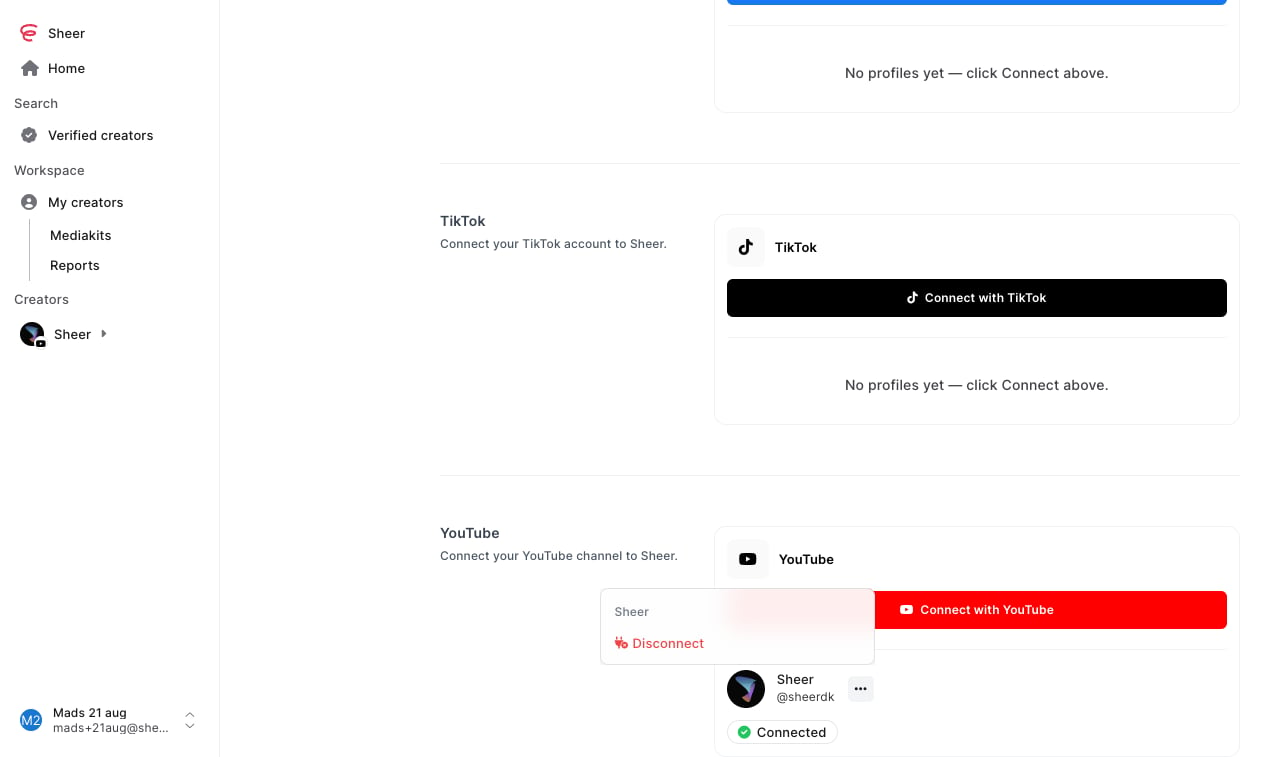
Still not working?
- “No YouTube channel was found for this Google account.” You signed in with a Google account that doesn’t own a channel. Connect again and pick the right account, or the right channel if it’s a Brand Account.
- The channel shows “Missing permissions”. You unticked the Analytics permission. Connect again and tick both.
- The channel shows “Reconnect required”. You removed Sheer from your Google account, or Google revoked the access. Connect again.
- Anything else. Email support@usesheer.com with your channel’s name or handle.